

Prerequisites
- Claude Desktop installed: Download the latest version from Anthropic.
- An OpenRouter account: Sign in at openrouter.ai.
Step 1: Enable Developer Mode
Launch Claude Desktop — you do not need to sign in. Open Help > Troubleshooting and click Enable Developer Mode. This adds a Developer menu to your menu bar.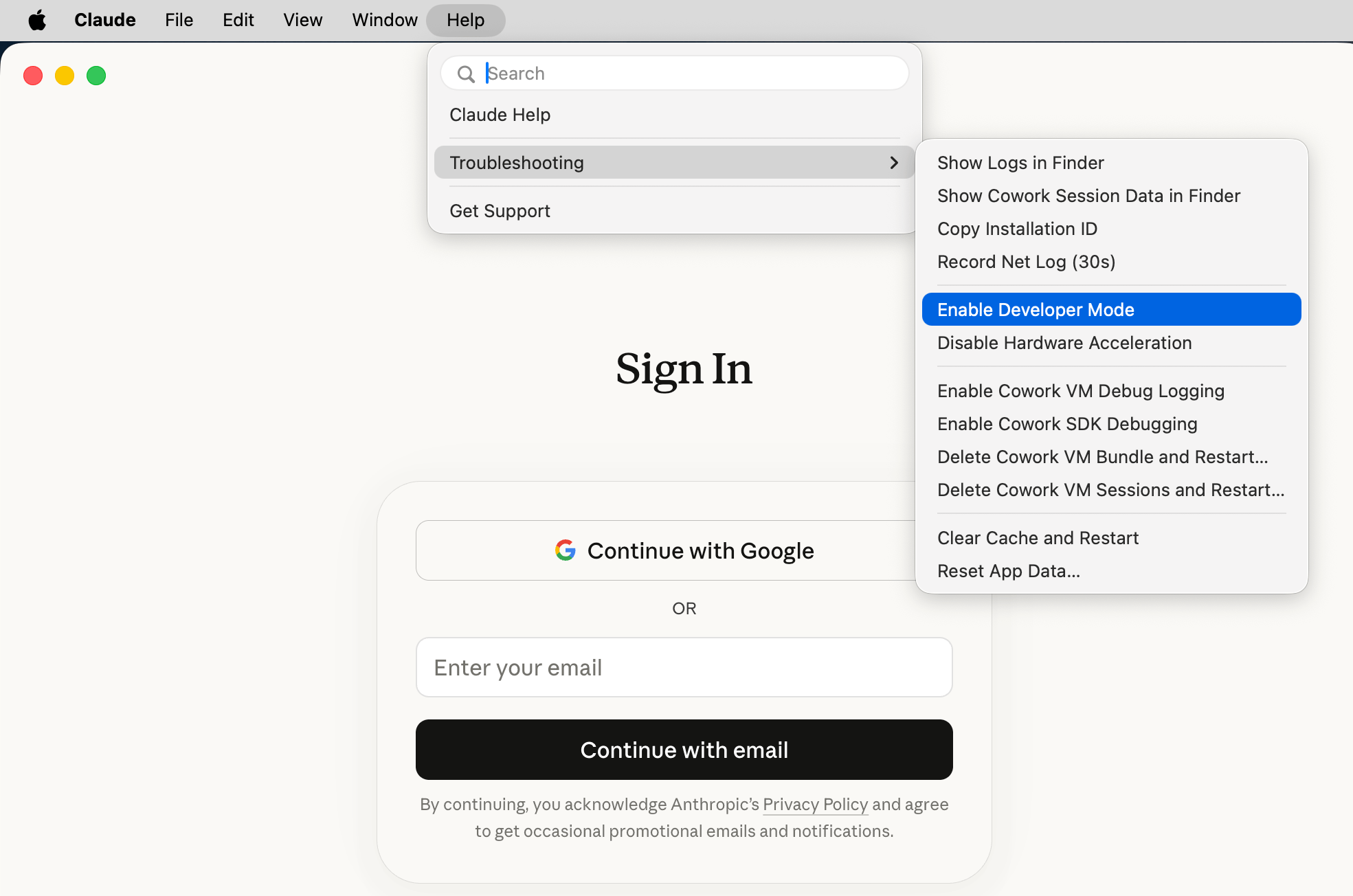
Step 2: Open the Third-Party Inference panel
Click Developer > Configure Third-Party Inference… in the menu bar.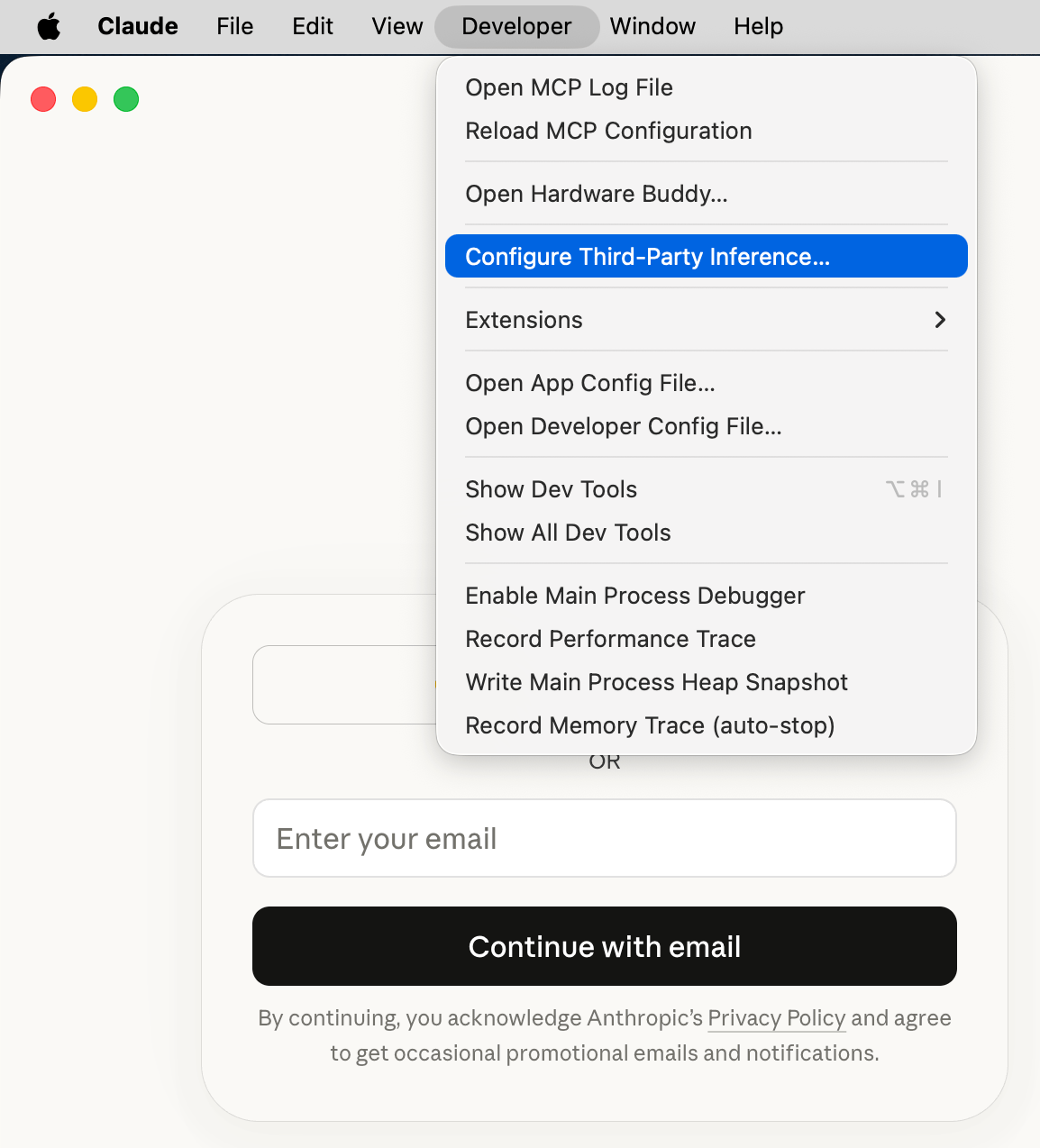
Step 3: Configure the gateway for OpenRouter sign-in
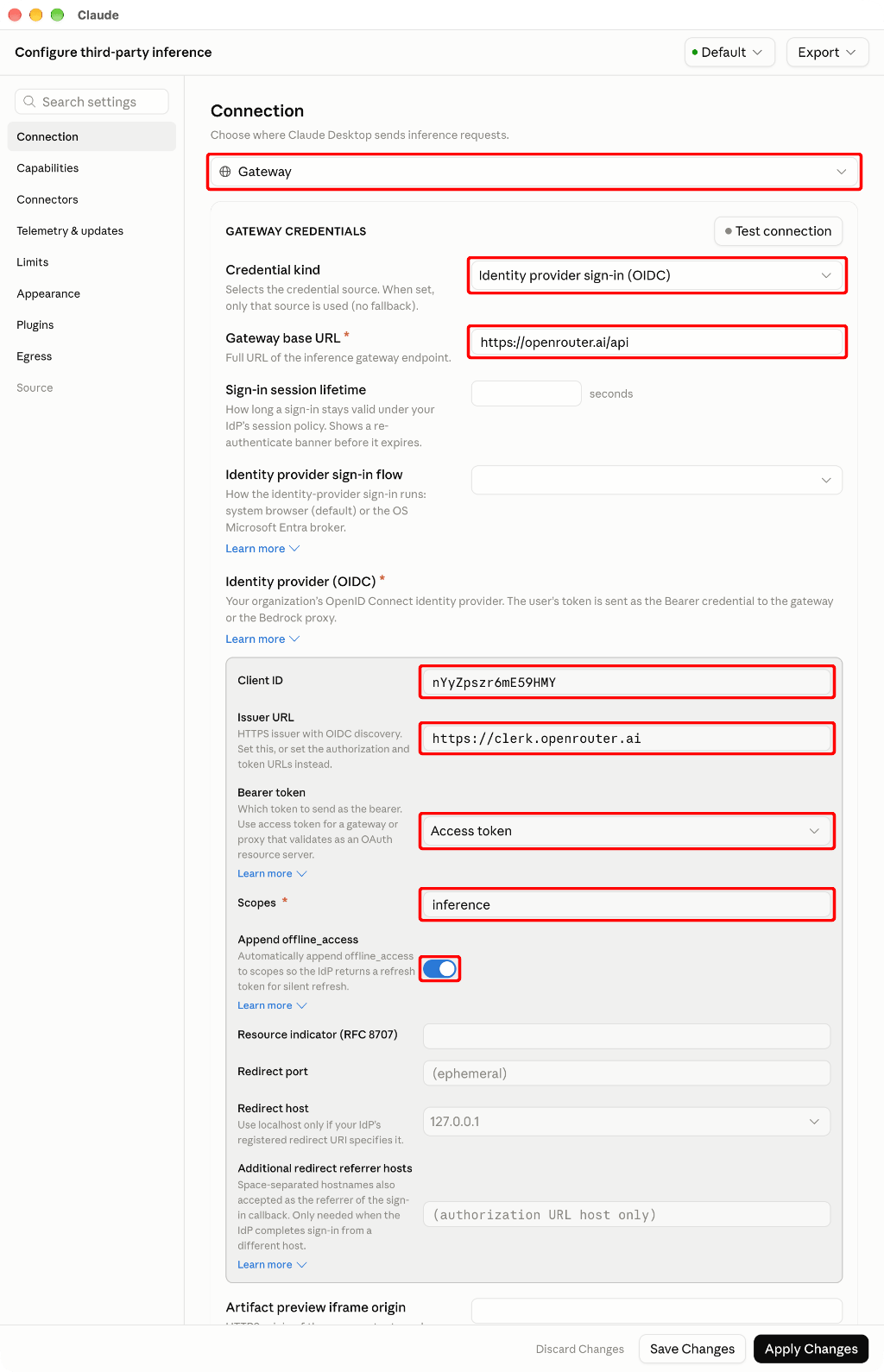
On the Connection tab, set the connection to Gateway, then enter the following values:
Under Identity provider (OIDC), enter the OpenRouter sign-in settings:
With Credential kind set to Identity provider sign-in (OIDC), Claude Desktop uses only the token from your OpenRouter sign-in and does not fall back to another credential source. Append offline_access lets Claude Desktop refresh your session without asking you to sign in again each time the access token expires.
Step 4: Apply changes and sign in
Click Apply Changes. Claude Desktop restarts and shows Sign in with your organization.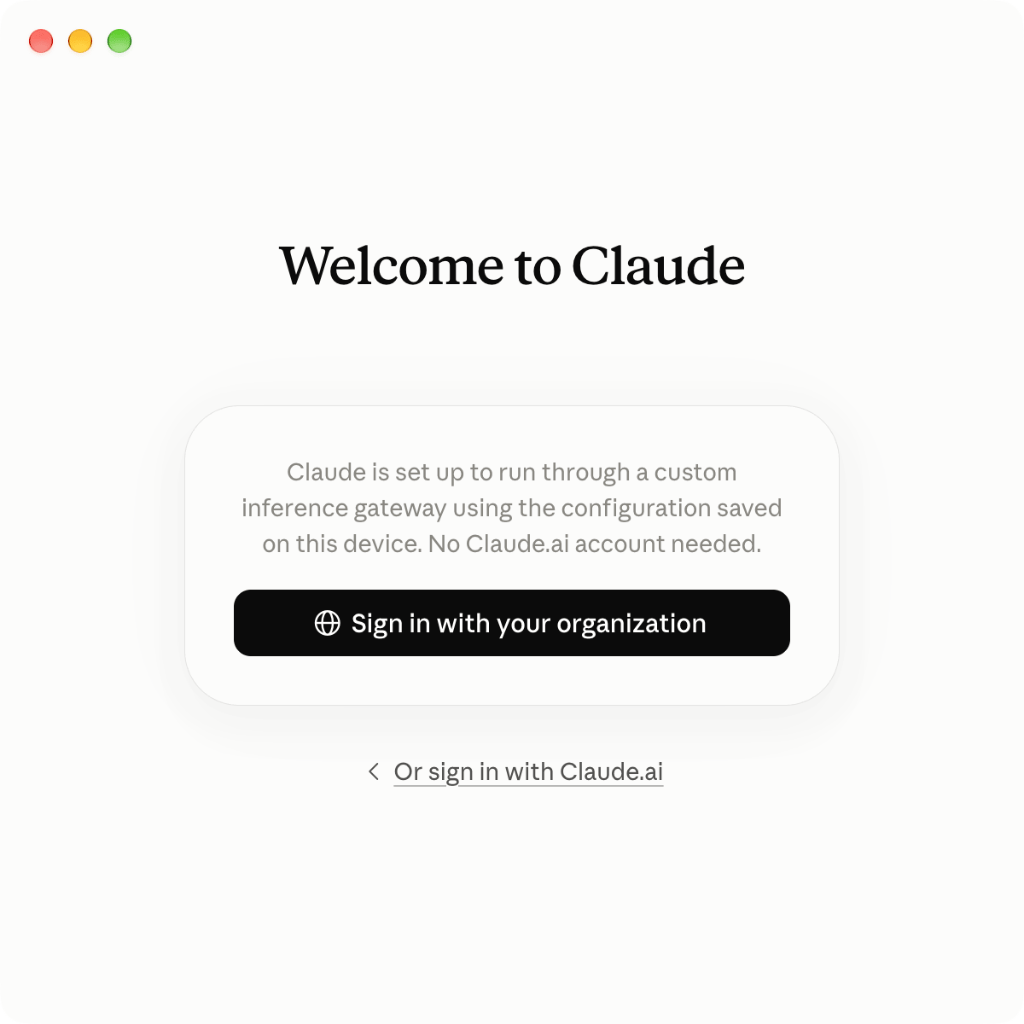
Step 5: Approve access for Claude
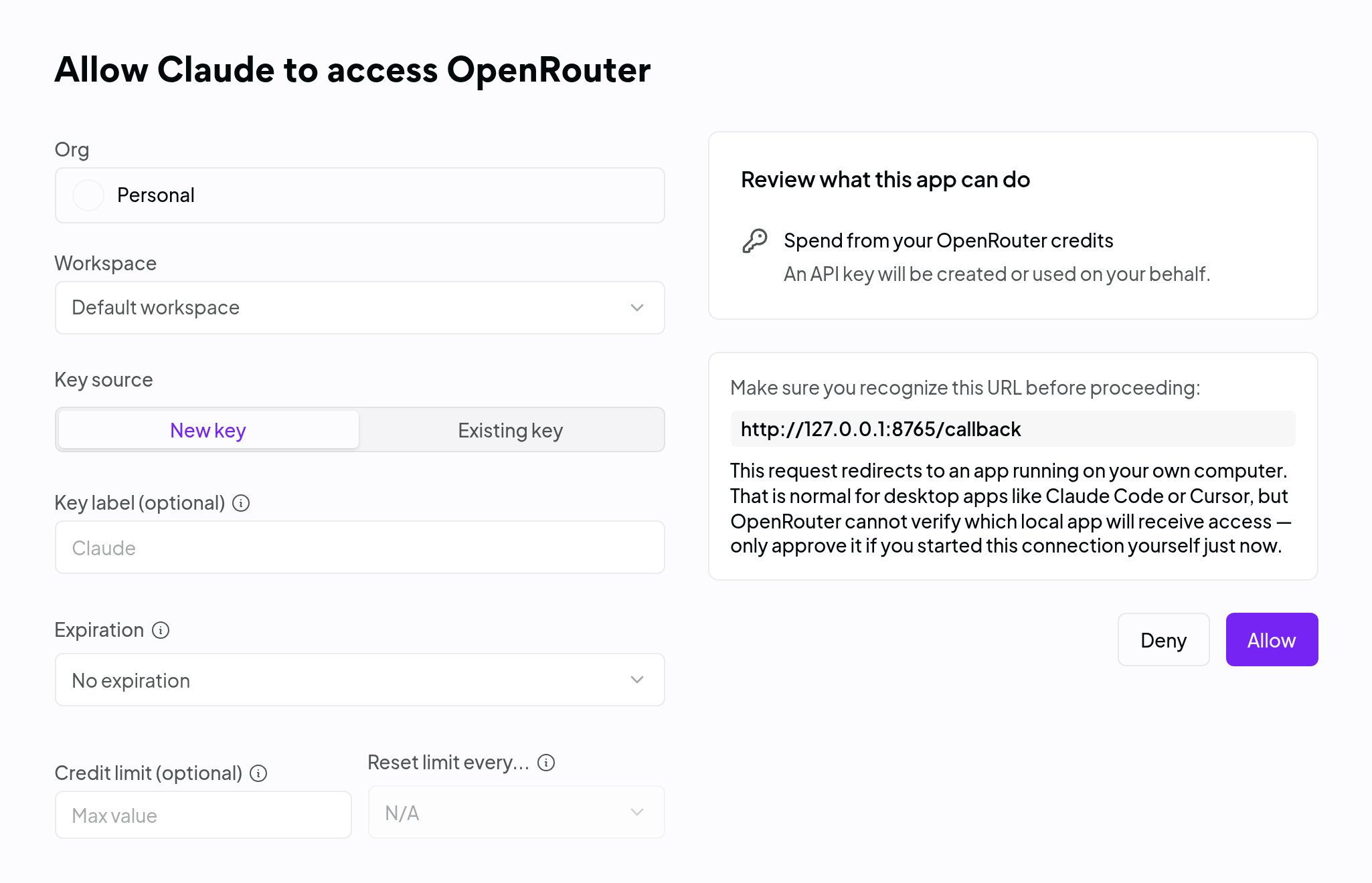
After you sign in, OpenRouter asks you to approve access for Claude Desktop. Choose where usage is billed and which key Claude Desktop uses:- Org and Workspace: The organization and workspace that pay for Claude Desktop usage.
- Key source: Select New key to create a key for Claude Desktop, or Existing key to reuse a key you already have, for example to share a credit limit with other tools.
- Key label, Expiration, and Credit limit (optional): Settings for a new key.
http://127.0.0.1:...), then click Allow. If the callback URL points anywhere else, don’t click Allow. Close the page and start the sign-in again from Claude Desktop.
Step 6: Select your model
The model picker displays the models available through your OpenRouter connection.Deploy with MDM
If you manage Claude Desktop with a mobile device management (MDM) profile, set these values in the managed configuration instead of the Third-Party Inference panel. When a managed profile is present, Claude Desktop reads its inference settings from that profile and users cannot edit the panel. In the managed configuration, set the credential kind to identity provider sign-in (inferenceCredentialKind) and set the gateway OIDC settings (inferenceGatewayOidc) to the values from Step 3. Each user then signs in with their own OpenRouter account, so you do not need to distribute API keys to their devices. For the exact key format, see Single sign-on configuration keys and the Claude Desktop configuration reference.
Troubleshooting
- “Sign in with your organization” not showing: Make sure Credential kind is set to Identity provider sign-in (OIDC) and you clicked Apply Changes. If Claude Desktop doesn’t restart on its own, fully quit and reopen it.
- Sign-in fails or returns to the start screen: Confirm that Client ID, Issuer URL, and Scopes match Step 3 and that Bearer token is set to Access token, then sign in again. Make sure you clicked Allow on the OpenRouter approval page.
- Connection errors: Check that Gateway base URL is exactly
https://openrouter.ai/api. - No models appearing: Make sure the account or workspace you approved has credits. Check your balance at openrouter.ai/credits.